 b
b
BoMail PST-Viewer
bomail.at
Outlook PST Manager
Why BoPST?
Switching your email program raises one big question: what happens to the
countless gigabytes of old Outlook data?
Importing the entire archive sight unseen makes your mailbox slow and cluttered from day one.
But simply abandoning the old data is no option either – it may well hold important invoices,
project histories or old contracts.
BoPST is the archive companion to BoMail PRO: you start
your day with a perfectly tidy, fast mailbox and still reach your old Outlook files
(.pst / .ost) whenever you need them – smartly, selectively and with
no compromise on performance.
100 % without Outlook
No Office licence, no Outlook installation required. BoPST reads the
PST format entirely on its own.
Lightning-fast full-text search
A modern search index scans even massive archives in a fraction of a
second – keyword, sender or attachment found instantly.
Targeted export
No blindly dragging along old newsletters: export exactly the emails
you actually need in BoMail PRO.
Preview & attachments
View and open emails including attachments – without importing them
into your mailbox first.
BoPST & BoMail PRO
BoPST is launched directly from BoMail PRO. In this mode all Pro features
are available (see page 3). Without being started from BoMail PRO, BoPST runs as a
limited FREE version.
BoPST · Introduction Page 01
BoPST
Quick Guide · 1 / 2
Quick Guide
Ready in 60 seconds
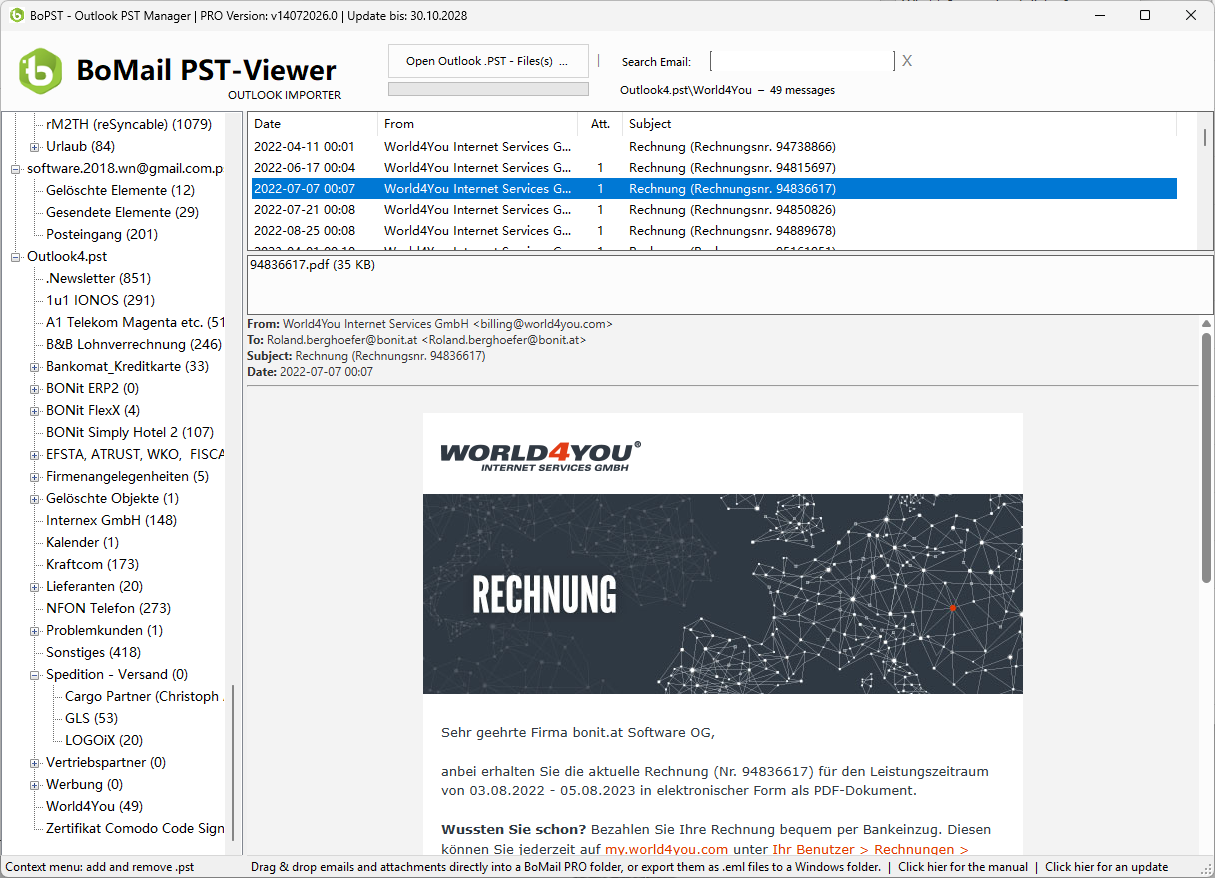
BoPST shows your archive in three areas: the folder tree on the left, the message
list at the top right, and the preview with the attachment strip below.
FIG. 1 Folder tree · message list · preview & attachments
Step by step
- Open a PST file
Click
OPEN PST-FILE(S) … and select one or more .pst or
.ost files. The opened paths are remembered and reloaded automatically on the
next start.
- Pick a folder
Click the desired folder in the tree on the left. Its emails appear immediately in the list on
the right (date, sender, attachments, subject).
- Read an email
Click a message – the preview below shows sender, recipient, subject, date and the full
content, including the attachment strip.
Search index in the background
The first time you open a PST file, BoPST automatically builds a search index. Progress is
shown in the status bar at the bottom. After that, the full-text search returns results almost
instantly.
Quick Guide · 1 / 2 Page 02
BoPST
Quick Guide · 2 / 2
Quick Guide
Search, attachments & export
Full-text search
Just type into the Search Email field. From the 3rd character
onward, BoPST searches live as you type – across sender, recipient, subject and message body. Use
X next to the field to clear the search.
Open & save attachments
In the attachment strip, the mouse pointer turns into a hand over an attachment. A
click (or double-click) opens the attachment with its default application. To
keep a copy, use Save attachment from the context menu.
Export emails
Select one or more messages and drag & drop them straight into
BoMail PRO or into any Windows folder. Each email is exported as an .eml file
including all attachments.
FREE version
Max. 50 messages per folder, max. 10 search results. No
attachment saving, no drag&drop export.
PRO version
Unlimited display & result count, save attachments,
drag&drop export – active when started from BoMail PRO.
System requirements
Windows (x64), .NET Framework 4.8 and the WebView2 runtime. No Outlook
and no Microsoft Office required – BoPST reads the archives entirely on its
own.
Full functionality
Launch BoPST from BoMail PRO to unlock all Pro features. That way you separate the wheat
from the chaff and move only the emails you truly need into your new, tidy mailbox.
bonit.at Software OG
Roland Berghöfer · Austria · bomail.at
Quick Guide · 2 / 2 Page 03